
In this tutorial, i will teach you how to create a circular pattern using only through circle outline/stroke. With the help of Liquify tool, Rotate tool and average tool option. I made this tutorial into parts. So user can practices on few tool first then, ill show you how to make patterns and using them to make a brush. I made so many brush which i name it as freestyle. After completing the tutorial .ill give the brush for illustrator. And this technique can be implemented or used in cs to cs4 vesion.
[Sorry for not posting any tutorial recently, actually i was posting this tuts last week, due to out of station,these files are left in pc. On travelling i saw the twitter link comments plug-in and to share the good plug-in with you all i wrote that tutorial ,as a student i may done some mistake please notify me if i done any and forgive me].
Steps :1
Create a circle of your choice by clicking circle icon from the tool bar(L). You can drag the mouse to create a circle , or to create a perfect circle click on the artboard. And choose the size 250px each. Fill should be disabled, only stroke have enabled. We need only outline.

We need only outline.
Step:2 [ crystallize tool ]
Select the Crystallize tool and change the size of the tool. Remember Larger than the circle. Place at the centre of the circle and press until you got nice result like below image. [Tip: by pressing Alt+ drag you can resize the warp tool].

pressing Alt+ drag you can resize the warp tool
Result:

Step:3 [ Rotate tool]
It’s time to rotate this shape. Select Rotate tool(R), and click on the centre of the shape and click once. Now try to rotate the shape using click and drag to check. Two things may happen.
[1. if it moves along with the pointer, then you didn’t select the point correctly]
[2. if it rotate the shape and keeps her centre at one place – you doing great]

Click and rotating the shape and press Alt button to make Duplicate. Without leaving the mouse button. The rotation space is up to your choice – the Less space you gave for more shape to create. Now Press Ctlr+D to make more copies of the same shape. no of duplicates depends on you.

Select the rotate tool
Keep on doing this until you get you choice. Now select each stroke or group of some stroke to color them . make it your choice of color.
Now the shape look like this.

final preview of this step
Step:4
This is Fun part. Before doing, Always make some duplicate of the original circle(shape) and group it separately .
Now You can play with all tool . select the whole circle and click on the centre, you can try move the tool to other places to see the difference. Below is some preview of Using each tool result.

done by twirl tool
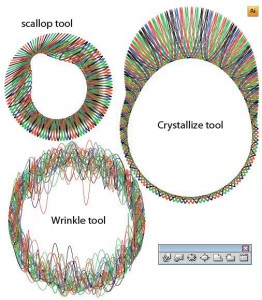
Result:tried with differnet tools
Step 5
Had fun, ok. Now ready to make circular design as i told. Select a new circle (shape) and ungroup it now, then select right click -> select average. An option dialog box appears with horizontal, vertical and both. Work with one by one.
-select the shape, Right click-> average-> horizontal.

Now follow the same method but this time, select shape, Right click-> average-> Vertical.
Select Both option from the Average option for the final preview

Final Preview
The tutorial continuous for next post also[ how to create different seamless patters and brushes ]
so …. stay tuned and subscribe it for latest updates.
[ Tip: if you make this same designs in A3 size layout and bigger that this, you get more cool designs more than you except]Next post will be continuing how to make this edited line to make more different designs. I named it as circular pattern – if you thought there will be a different name for it. Say it comment box.]
Friends please share it with your friends. and if any fault you find it, tell me in the comment form.





amazing website my friend… glad to know that u r a fellow indian. I am a self supported design myself, but still a novice(even though my main stream is engineering, i love to design digital stuff) . I am truly inspired designers like you.
keep going!!!
welcome to animhut & thnkx for the comment
Awesome! thanks for a quick one
.-= Taranfx´s latest blog ..Why Windows Mobile is Microsoft`s Vista =-.
i happy you liked it.
you bet! 🙂
.-= Taranfx´s latest blog ..Google Maps Navigation Beats All GPS =-.
This is my first time i visit here. I found so many interesting stuff in your blog especially its discussion. From the tons of comments on your articles, I guess I am not the only one having all the enjoyment here! keep up the good work.
thats great I lie that alot sri : )
.-= Benjamin Rama´s latest blog ..9 Unique and Exclusive iPod and iPad Brushes for Photoshop. =-.
That rss option on your site here is brilliant, you should tell more folks about it in your next post. I haven’t noted it for the first couple of times, now I’m using it each morning to check on any updates. I’m on a real slow dial-up link in Brazil and it’s rather baffling to sit there and wait for such a long time ’til the page loads… but hey, I just found your rss page and added it to the Google Reader and voil? – I’m always up-to-date! Well buddy, keep up the good work and make that rss button a little bigger so that other people can enjoy that as well 😛