
Today we show you how to create a twitter icon bird in illustrator. Twitter is a powerful micro blogging, which crossed above 10th billionth tweets two days before. So tribute to the twitter we go through how to make them. We have already given the icon pack, this tutorial request from readers/friends asked me to write –this bird drawn using with pen tool. So digg in to the tutorial.
Tutorial Details :
1. Software Used : IllustratorCS4
2. Tools : Pen tool(p) and Gradient Tool
3. Time Duration : 20 minutes – 30 minutes
4. Total Steps : 5
5. Attachments : Source file with Tutorial Pdf and Icons
6. ICON License : Personal and commercial purpose.
No Re-distribution.
Final Output :

Steps :1 Drawing a shape using the PEN tool
open a document in illustrator. ( Ctrl+N ) or file -> new.
take a pen tool (P) and try to make a shape like this. Don’t worry if you don’t get the same shape. We are not using any default shape to make this , so the shape bit differs. And you can get even better shape ;).

i used 4 nodes to make the shape
Now the shape look like this, the minimum nodes giev you more curvy.

review of the first step
Step 2 : Adding the Gradient color to the body
fill the shape with radial gradient. ( G ). The values are :

step:2
step :3 Making twitter Eyes
How about adding simple eyes to the bird.
Draw a circle (ellipse tool – L ) and drag it . if you need perfect circle click on the art board and it ask for the width and height.now circle with radial gradient tool . mode: Greyscale give the values . here the number determines the value.
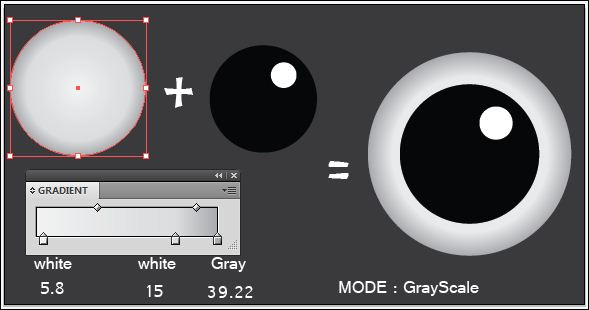
step :3 making of eyes easy step
Step :4 making of beak
Make a shinny beak for the bird ! Draw a triangle look and the following image show you clearly the values added.
Take radial gradient tool and fill the shape with yellow colour and give the values, as show in the image.

step : 4 making of beak
Mode: web RGB . Now draw a white ellipse shape and reduce the opacity to 66%. Now place the beak correctly.
Step : 5 Making Wings using pen tool
Make wings now , starting with a pen tool and make a leaf like shape(as shown below ) an fill it with linear gradient tool ( G ) same color as used in twitr body ! – Only the location changes .
Location =”25” and “50.3” and the angle is “ -161 “

step:5 draw wings with pen tool
Now copy the wings and paste behind the body of the twitr. ( ctrl+C and ctrl+F) and drag it to back ground.
We did! But wait if you need some highlights draw a small shapes above the shape and reduce the opacity. Preview:

optional : adding highlights and shadow





This was great and VERY easty to follow. Thanks for this quick tutorial.
thanks for the kind words azterik
Great tutorial, as always! Thanks for sharing 🙂
thanks holly for your comment 😀
Great stuff, keep publishing Tutorials
.-= Taranfx´s latest blog ..Google Your Home with Roomba Bot =-.
thanks for the words 😀
pretty quick tutorial mate, love it
.-= Mars´s latest blog ..13 Stunning Photograph =-.
thanks mars for your comments, your new design is good , liked it 😀
nice and simple. good tutorial!
.-= Nikola Lazarevic´s latest blog ..Most Important Design Conferences In 2010 =-.
thanks nikola … for your comments 😀
Nice tutorial. I would have liked a blue bird….
What about the feet?
.-= Richie´s latest blog ..The Mystical World of Mandelbrot fractals =-.
glad yo liked it ! you like the blue color, no problem just add the blue gradient or single color and you done. its a very simple tutorial, using pen tool. i didn’t went to advance steps.
and legs, i made icons for this in oct09, so keep the originality i made same look like,
even the original twitter does n`t have legs 😛
This is really great Sri. I am def trying more Illustrator.
.-= Kawsar Ali´s latest blog ..Converting Wooden PSD Template to HTML =-.
thanks kawsar.. you latest article is so good. thanks for sharing D:
Nice quick tip sri cheers for this ,Ben
.-= Benjamin Rama´s latest blog ..9 Unique and Exclusive iPod and iPad Brushes for Photoshop. =-.
thanks rama for you kinda words
You and I share a love of twitter bird tutorials 🙂
yes we do 😀
Interesting, easy and fast tutorial, I have submitted to my bookmark site! Thanks for sharing.
.-= Hesham @ FamousBloggers´s latest blog ..7 Basic Tips For Designing Your Blog =-.
thanks for the comment hesham
Nice tut Sri. Voted this one up 🙂
.-= Shurandy Thode´s latest blog ..Create a smiley face using only xHTML and CSS =-.
thanks for the vote buddy 😀
Thanks for this wonderful tutorial……….
thanks ishan
The twitter bird is beautiful, will learn to draw one later.
thanks for the comment 😀
This is a pretty neat tutorial. Twitter birds rule 🙂
yes it rule 😛 thanks for commenting and welcome to animhut 😀
Very nice tutorial, just came across your site, very impressive and brilliant content. Added to bookmarks, thanks.
thanks for the comment thomas
Man, that birdy is really cute. Thanks for this awesome simple tuto Ganesh.. loved it! 😉
.-= S.Pradeep Kumar´s latest blog ..100+ Resources To Download Excellent Free Fonts =-.
thanks sam glad you like it
excellent training in few steps for create an bird like twitter.
thanks TL ! even i have to practice more. basically in shadings
It looks simple but it is actually pretty hard to do. Nice work.
.-= Inzone Internet´s latest blog ..Ask Me a SEO or Blogging Question! =-.
Wow.. You got it in a simple way 🙂
.-= SmashingWebs.com´s latest blog ..49 Amazing Premium WordPress Portfolio Themes =-.
Thanks for the Comment ! welcome to animhut
Very simple and useful tutorial indeed.
thats great ans so fast, Just need to put blue in it 🙂
Really simple and awesome