AnimHuT
  • Articles
    • Other Topics
    • Picture Of The Day
    • Review
    • Viral Videos
  • Contest
  • Freebies
    • Brushes
    • Font
    • Icons
    • Infographics
    • Patterns
    • Photoshop PSD
    • Textures
    • VECTORS
    • Wallpaper
  • Inspiration
  • Photography
  • Themes
    • Plug-ins
    • WordPress Themes
  • Tutorial
    • After Effects
    • Codex
    • Flash
    • Illustrator
    • Photoshop
      • Text Effects
    • Quick-Tip
Home » Photoshop » PS Tutorial: Create a graffiti retro style poster
Aug03 13
PS Tutorial: Create a graffiti retro style poster

PS Tutorial: Create a graffiti retro style poster

Posted by Sipi Sagar in Photoshop

email
print

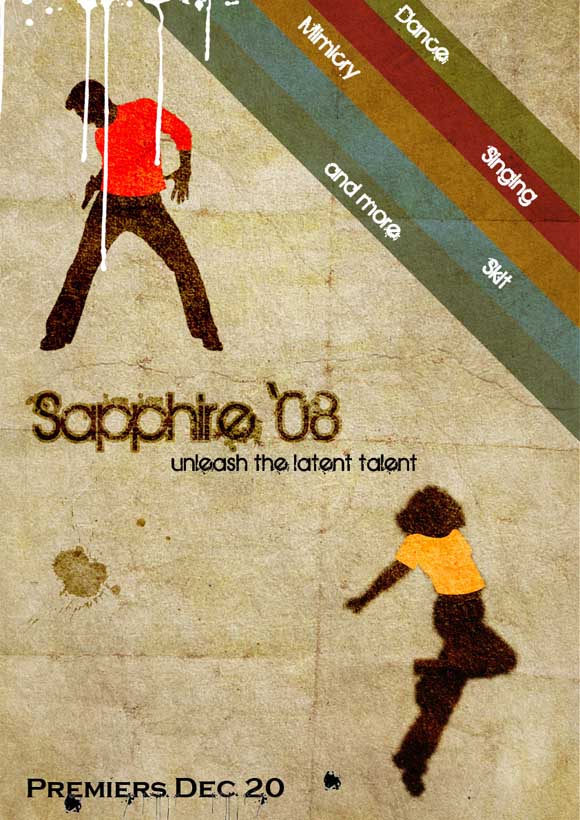
Graffiti and retro styles are really fascinating styles in design field from the day of their introduction particularly because of their eye-catching colors and attractiveness. They always make things look very eccentric but still good. So now in this tutorial we are going to see how to create a graffiti retro style poster.

Preview

Step 1

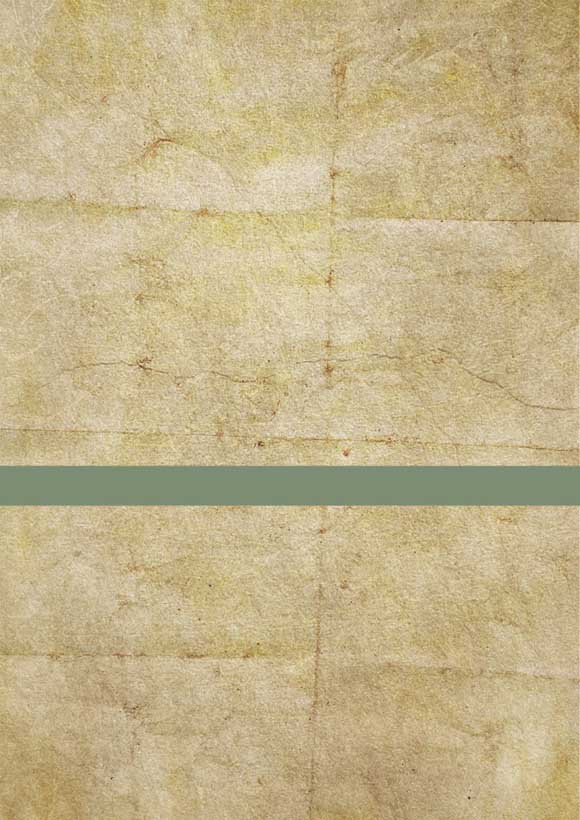
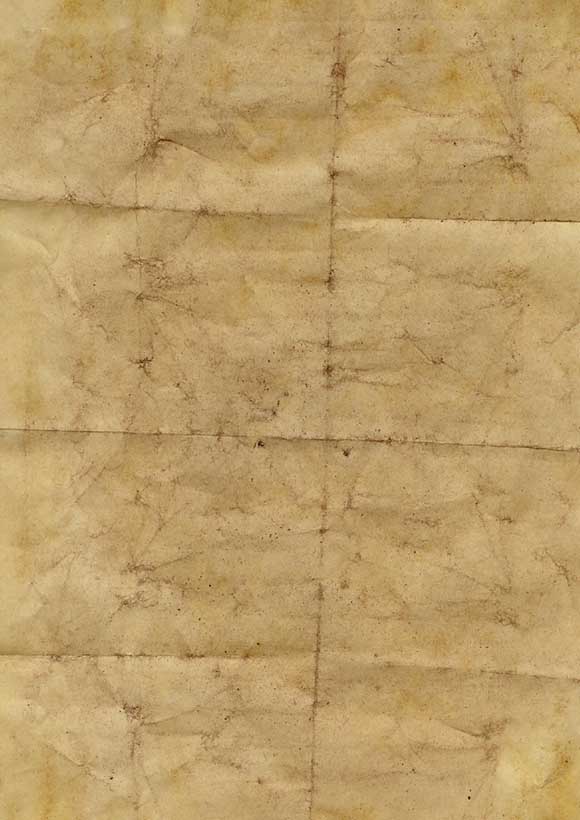
First open a file of A3 or A4 size with 300 ppi and in portrait mode. Now place this texture on a new layer.
Step 2

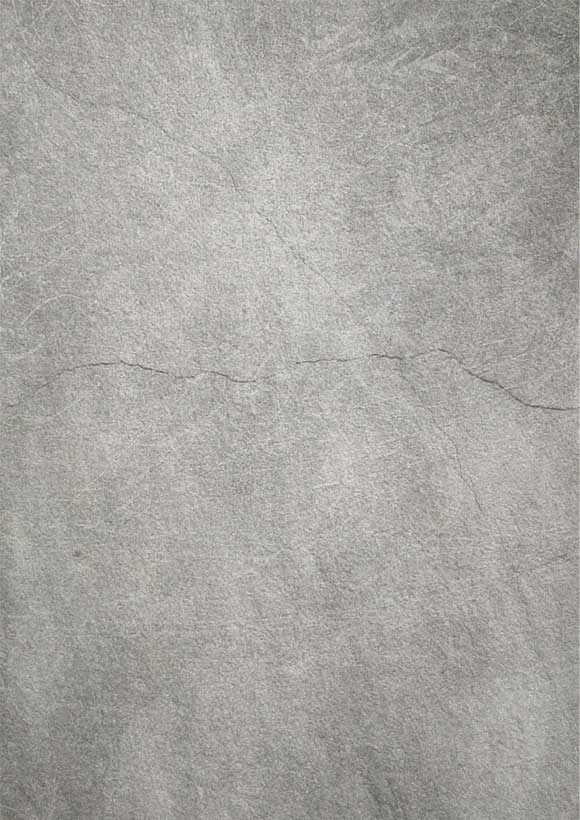
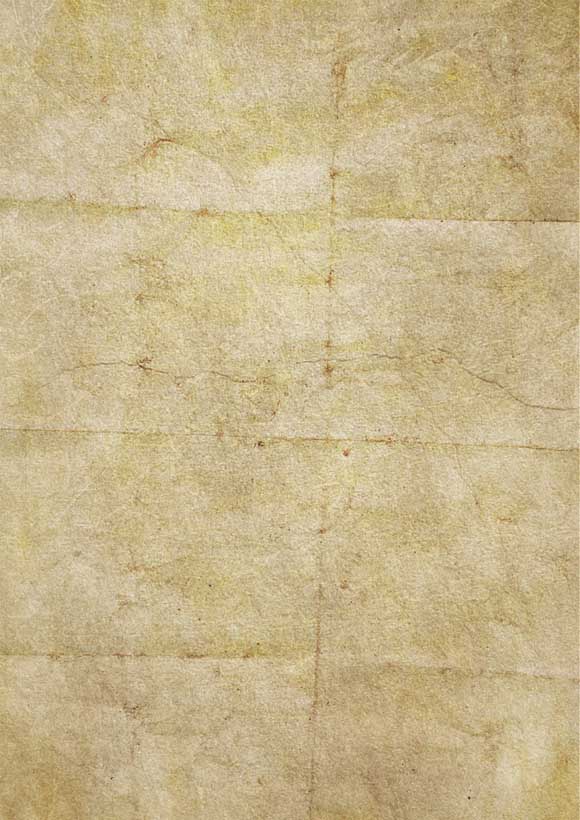
Now add this texture above this texture and change blending mode to hard light, opacity 85% and fill 90%. And you will get the following output.
Step 3

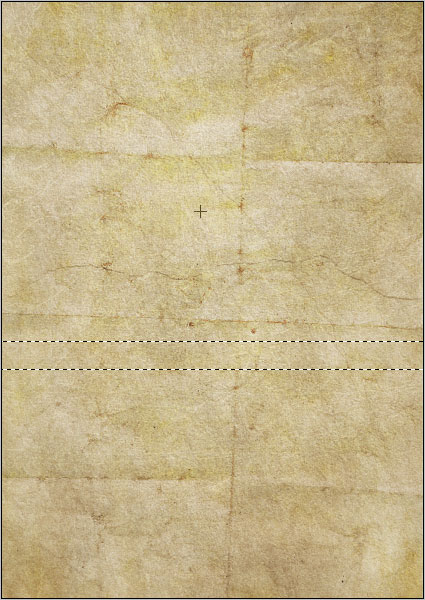
Now make a rectangular selection like the following and fill it with color value “7d8d72”.
Step 4

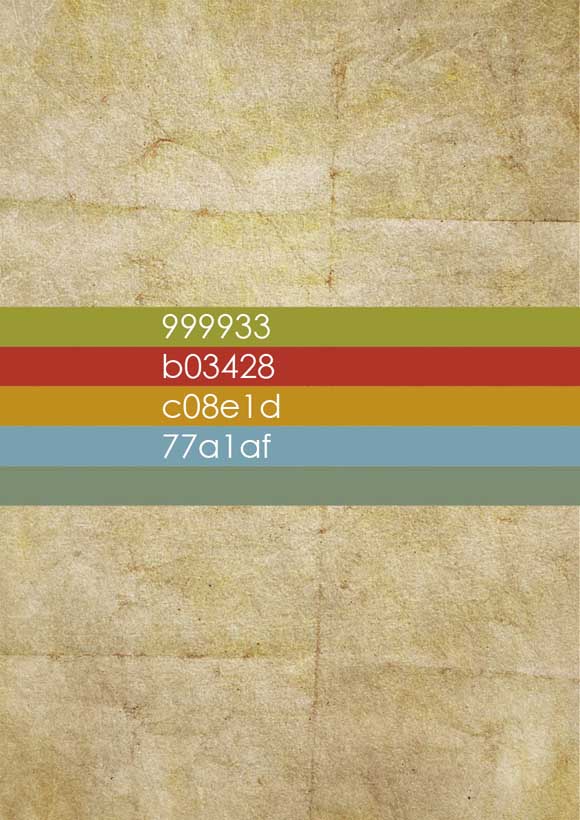
Now take 4 more copies of that rectangle layer, place it vertically one above another and fill with the following colors as shown below.
Step 5

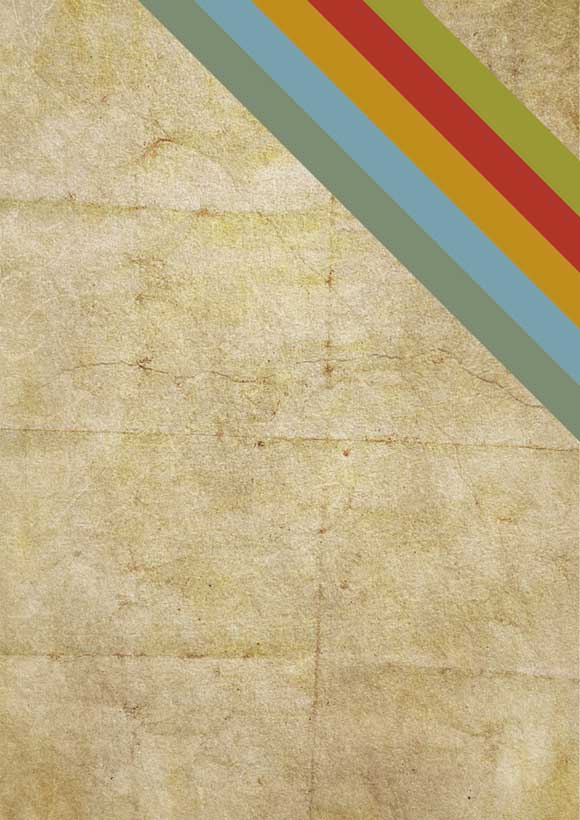
Now select all these rectangle layers together press ctrl+t and rotate 45 degree clock wise and place it in the top right corner in this fashion.
Step 6

Change the blending mode of the entire rectangle layer into multiply and you will get this type of output.

Step 7

Now place a silhouette like this and make it completely black.
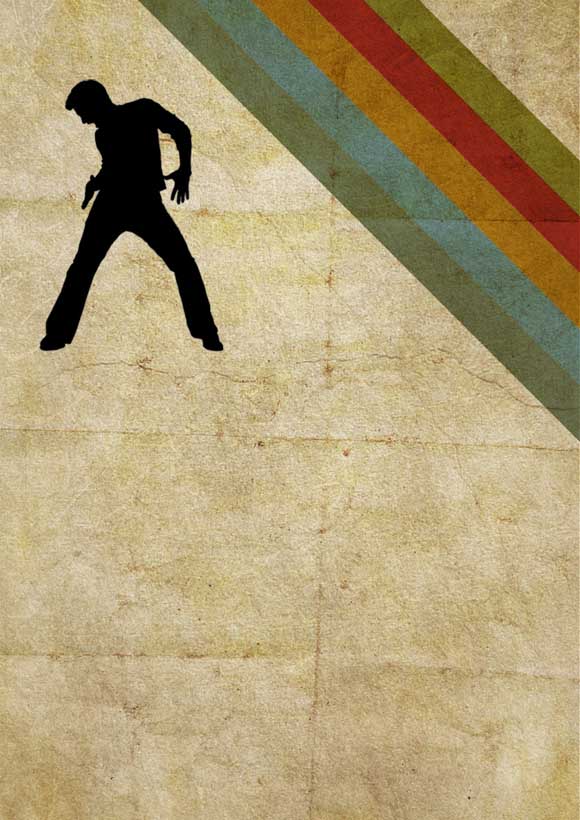
Step 8

Change blending mode of the silhouette layer to overlay and you will get this kind of output.
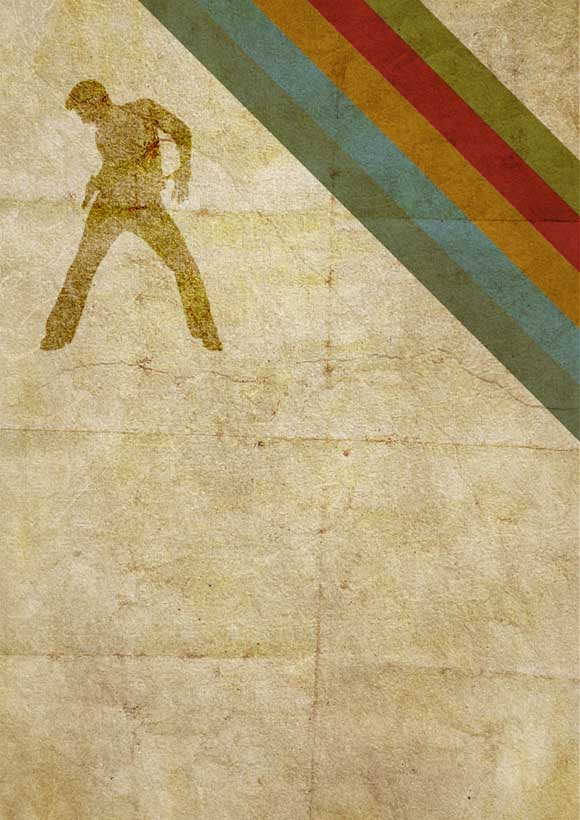
Step 9

Now draw a red shirt for him by tracing around his body and the change its blending mode to overlay.
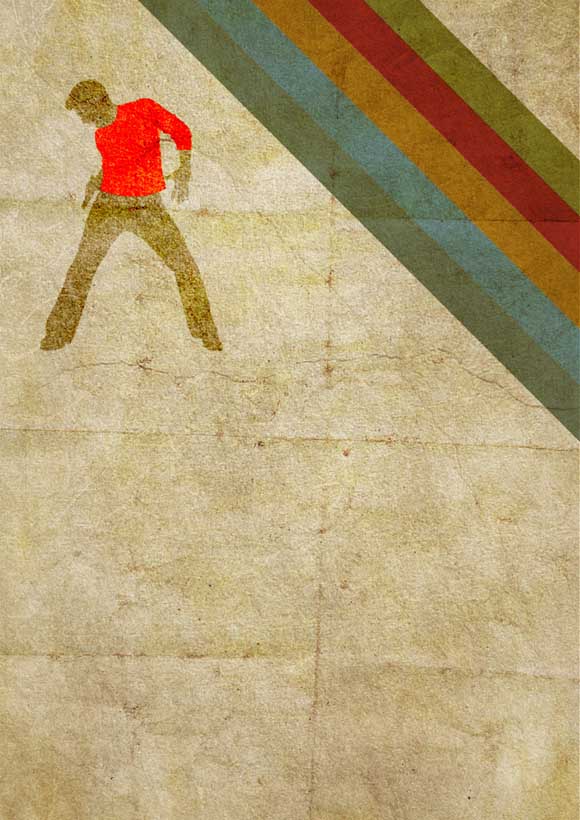
Step 10

Now take a copy of that silhouette layer and change its blending mode to overlay. Now hold ctrl and click inside the thumbnail of the red shirt layer and then press delete with the silhouette layer still selected. Then you will get this kind of output.
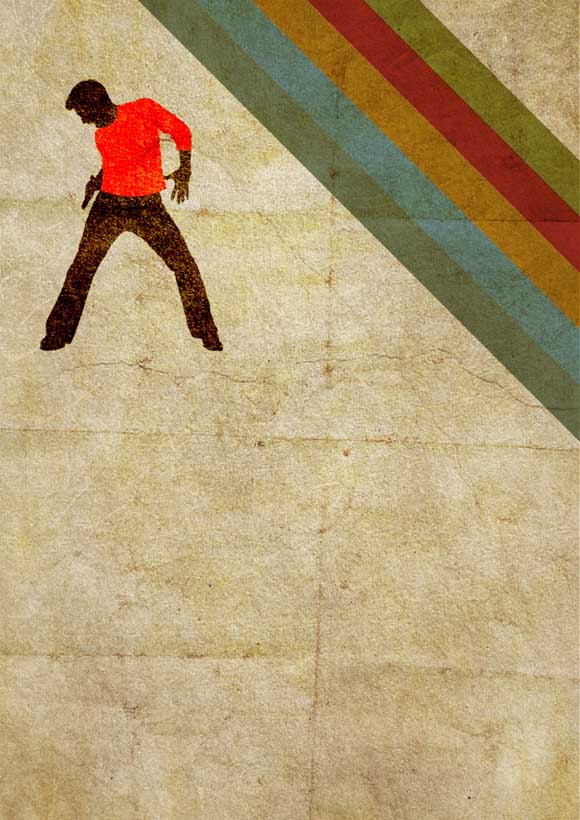
Step 11

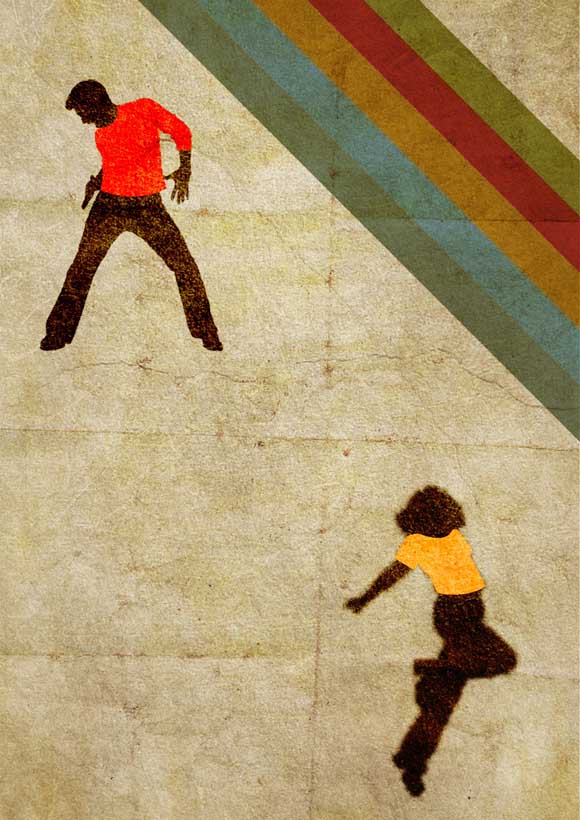
Now include another silhouette at the right bottom of the poster and follow the same steps as done for the previous silhouette (Step 7 to Step 10). But change the color of shirt for this silhouette. Now you must get something like this.
Step 12

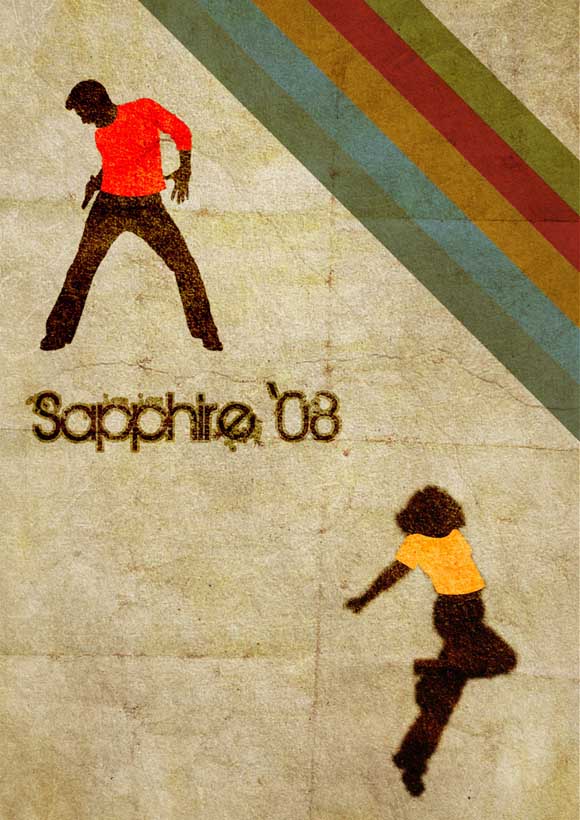
Now include the name of the event in black color and change blending mode overlay. Now hold ctrl and click inside the thumbnail of the text layer. Now the text gets selected. Now create a new layer below the text layer. Then go to Select-> Modify -> Expand and expand the selection by 2 to 5 pixels as you desire and fill it with black color and change that layer’s blending mode also to overlay.
Step 13

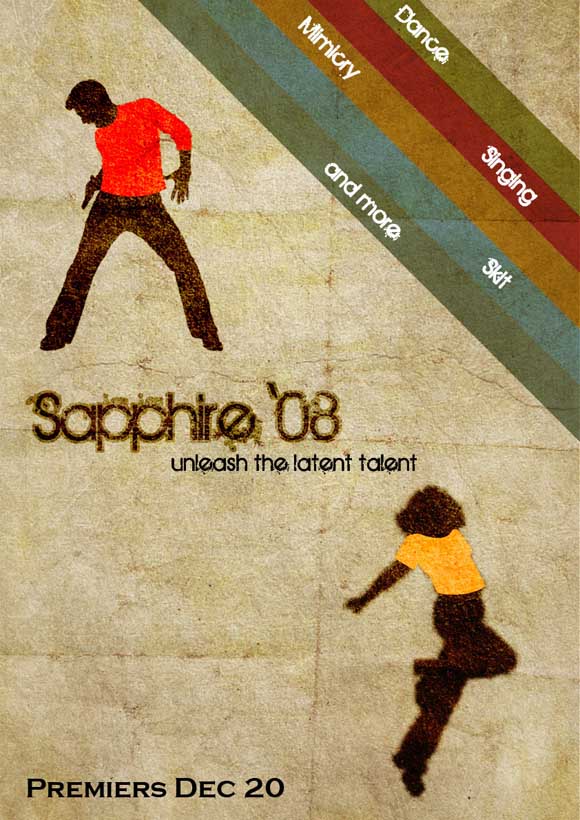
Now include other texts in the following manner as I have shown in the poster.
Step 14

Now include some splatter brushes here and there but not all over or with too much of colors and also try changing those layers blending mode to produce better output.

Thus, this is how you will have to create this poster.


BOOKMARK AND SHARE THIS TUTORIAL


0

About Sipi Sagar

Currently working as a corporate trainer for various international companies and universities or schools that deal with business, design, advertising and media and now have got settled as a permanent faculty at Arena Animation Academy, Koramangala. Also working as a freelancer in web designing for the past 2 years. Specialized in web designing, flash applications and 3d architecture.

  • http://warstwy.com adone

    Nice tut:) Congrats. I like retro & oldschool graffiti style.

    • Sipi Sagar

      Thanks adone, thanks for your appreciation, and interest in our blog

  • http://machoarts.com suraj

    Oh really nice tutorial!! Enjoyed every step :)

    • Sipi Sagar

      thank you suraj, thanks for the comments and regular visits.

  • http://flyertemplates.prowebmedia.net flyer templates

    thank you for the tutorial. It can be followed very easy, and the explanations and screenshots are very helpful. Great way to improve the technique.

    • Sipi Sagar

      thank you flyer templates this was made 2 years back and i was afraid whether i will get good reputation now and i am happy that it has gathered some attention.

      • http://flyertemplates.prowebmedia.net flyer templates

        Retro style will never get out of style…

  • http://designbeep.com Arshad

    Simple but great tutorial for beginners

    Thanks Sipi:)

    • Sipi Sagar

      Yeah tutorials are for beginners not for professionals because they already know nook and corner of the software.

  • http://www.designjuices.co.uk jared thompson

    Might chance my hand at this tutorial it looks so simple and easy to pull off!

  • deeps

    u r really doing awesome . i wish u the best of luck:]

  • tkphoto

    I’m really interested in trying this tutorial…is there a website where I can find the textured backgrounds that you used?

  • http://www.brettwidmann.com Brett Widmann

    This is a really cool tutorial! Thanks for sharing. I got a lot of good skills from this.

  • Pingback: 20+ Photoshop Texture Tutorials | Tutorials Share | Tutorials, Resources & Tips for Designers!

  • Pingback: Prolific Poster Design Tutorials for Photoshop Lovers

Our Advertisers :

Subscribe to AnimHuT (it’s Free)

Add Animhut on  Google plus animhut Free  Email Subscription for design updates animhut on twitter Animhut rss subscription for latest Updates Join our Official  Facebook Page Animhut Flickr Pool

Our Facebook Official Page
Follow @animhut

Archives

Community News

  • Useful Tips on Finding the Right WordPress Business Theme

    To retain customers who visit your site and to give them proper impression of a very professional, competent business, you…

  • 4 Ways to Keep Your Facebook Fans Happy

    Whether you have a Facebook Fan Page for your growing business or for your small garage band, you have a…

  • Movie Posters : Jeremy Saunders Key Art

    I saw Jeremy Saunders while he was talking about the design concept behind the “Burning Man” movie poster at the…

  • Lomography vs. Photography

    Lomography is an adaptation of the word photography that was originally inspired by users of the Lomo LC-A. The first…

  • 50 Urban Decay Photography Examples

    Photographers see beauty even in any forgotten areas on the planet like deserted places or abandoned buildings or anything that’s…

●● We Recommended ●●


● Best Web Hosting Review
● Best Web Host Companies
● Review BlueHost
● China wholesale
● factory
● Free Website Design
● Website builder
●Mactheripper
● Coupon Codes
• Freelance Web Designer
• Direct TV Packages
● InternetPhonePackage.com
•Best WordPress Themes
•iPage Web Hosting
● Web Hosting Services
●Youtube to MP3

Search by Tags

ANIMHUT art history Articles caricature character design Contest Daily Photography Daily photos design history digital painting Flickr Freebies Funny Videos google doodles graphic design Icons illustration Illustrator InfoGraphics Inspiration Inspriation mascot Patterns Photography Photogrphy Photoshop Photoshop tutorial picture of the day Poster Project365 Quick-Tip Review roundup sriganesh stock image stress buster Texture Tutorial twitter VECTORS Videos Viral Video Wallpaper Wordpress wordpress theme

Hall of Fame :

Friends

  • AdmixWeb
  • ArtAtm
  • BloggerJet
  • CreativeOverflow
  • DesignModo
  • Designrfix
  • Desizntech
  • Graphik Design Agency
  • Logolitic
  • Orphicpixel
  • premiumpress coupon code
  • Skyje
  • Smashingshare
  • Underworldmagazines
  • Visionwidget
  • Webdesignfan
  • Webexpedition18

Pages

  • DESIGN NEWS
  • Who We are ?
    • Authors
  • | CONTACT |
  • Site Map
  • Follow us
    • Google +
    • Like AnimHuT fan page
    • @animhut (Twitter)
    • StumbleUpon Profile
    • Add me on Facebook

© 2009-2012 AnimHuT | Designed by Elegant Themes | Powered by WordPress| Sherweb